Admin awards
This section list the awards section and its usage in the site.
The process to give an award is:
- Create an award (with or without imagery).
- Give the award to an application, community, or user.
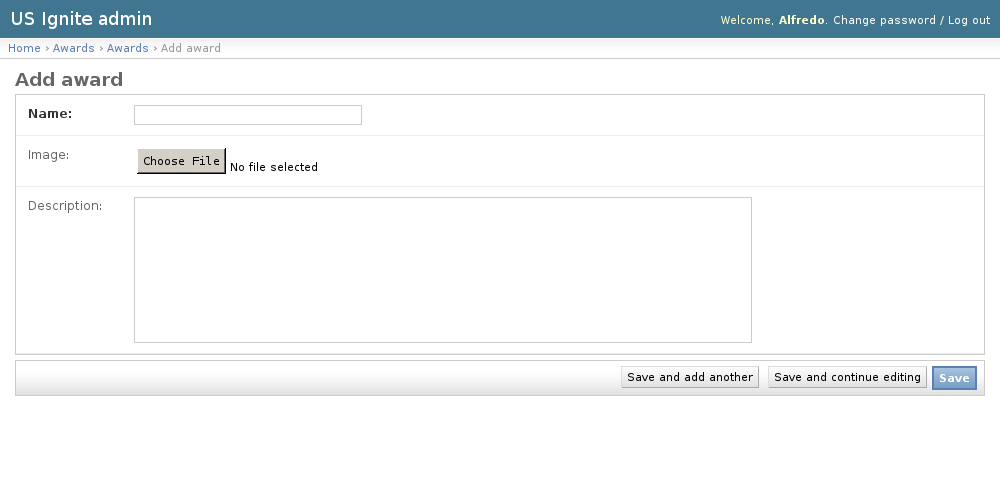
Adding Awards
The awards can be added in the /admin/awards/award/add/ section. The following vields can be created:
- Name: Required. Name of the award.
- Image: Optional. Imagery used to display the award.
- Description: Optional. Used to describe the award.
These awards are created so they can be assigned to an application, community, or user at a later point.
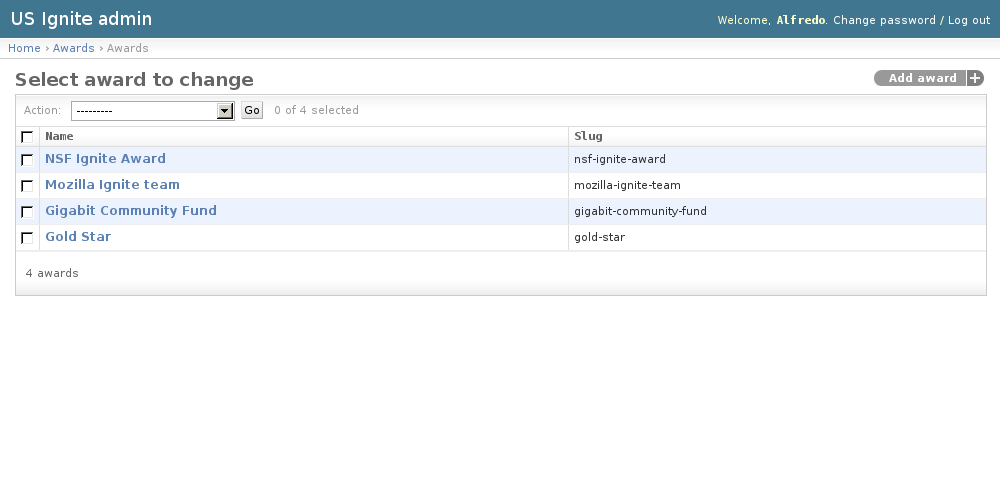
View existing Awards
The existing Hub Awards can be listed in the /admin/awards/hubaward/ URL. From this section the details of these Hub Awards can be inspected.
And the following actions can be performed:
- View the details of the Awards.
Give an award to an Application
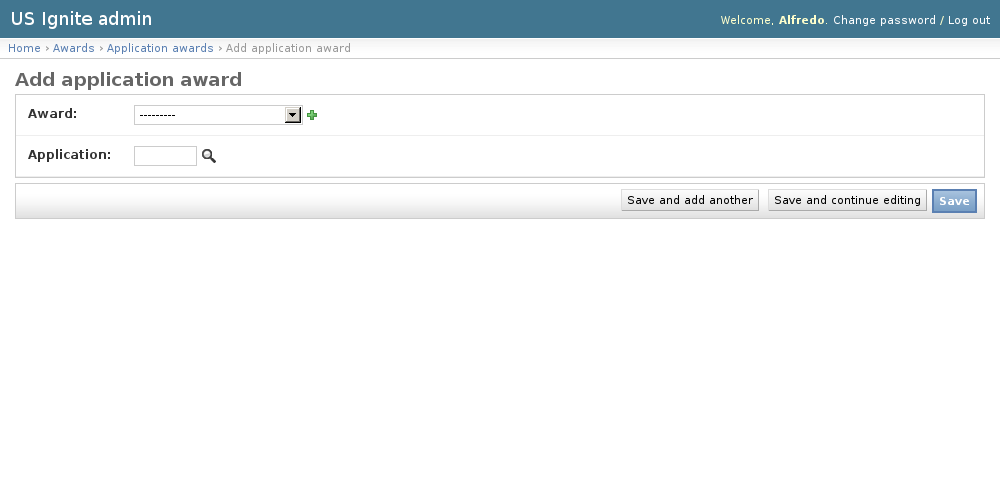
The awards can be given to an application in the /admin/awards/applicationaward/add/ section.
Here an award and an application can be selected. The magnifying glass icon will pop up a window to select the awarded application.
To select the award clicking on the name of the application will close the pop-up window and add the id of the application to the form.
Note
The searching form to filter the applications by content will be available from the pop up window.
The award will be published as soon as the save button is pressed.
View existing Application Awards
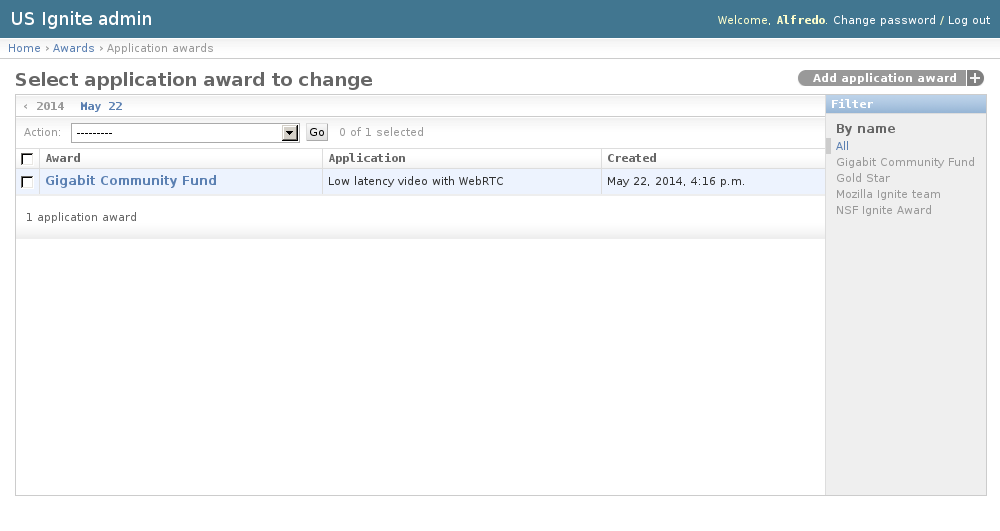
The existing Application Awards can be listed in the /admin/awards/applicationaward/ URL. From this section the details of the Application Awards can be inspected.
And the following actions can be performed:
- View the details of the Application Awards.
- Filter the Application Awards by: Award Name.
Give an Award to a Community
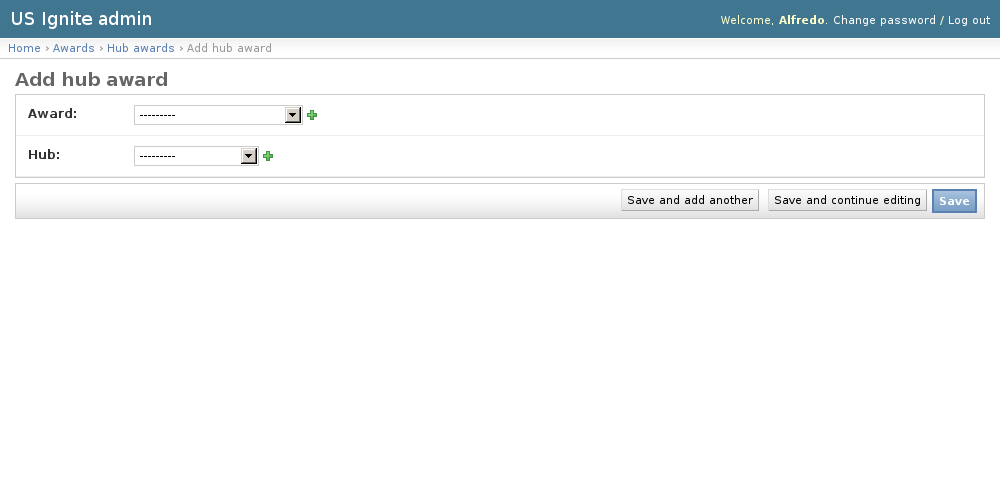
The awards can be given to Communities in the /admin/awards/hubaward/add/ section.
Here an Award and an Community can be selected. The award will be published as soon as the save button is pressed.
Note
The searching form to filter the Communities by content will be available from the pop up window.
View existing Community Awards
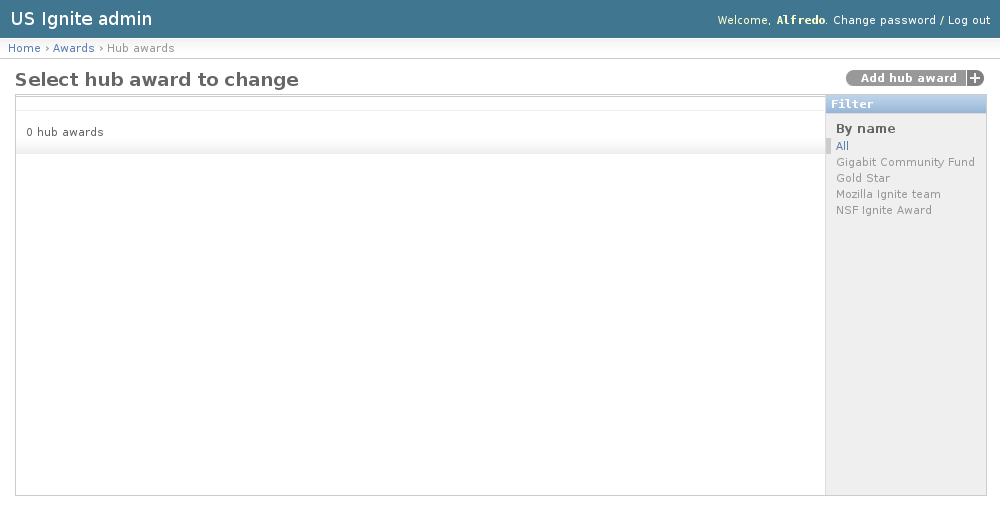
The existing Community Awards can be listed in the /admin/awards/hubaward/ URL. From this section the details of the Community Awards can be inspected.
And the following actions can be performed:
- View the details of the Hub Awards.
- Filter the Hub Awards by: Award Name.
Give an Award to a User
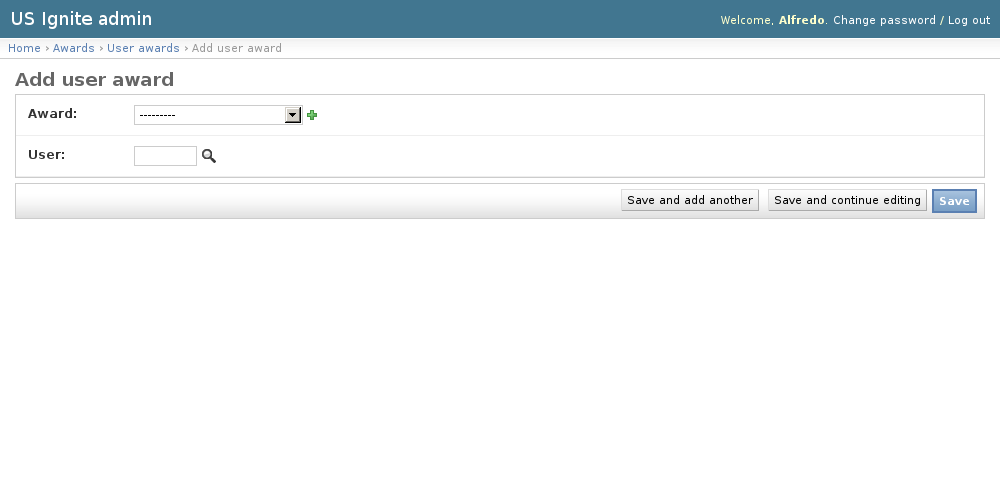
The Awards can be given to Users in the /admin/awards/useraward/add/ URL.
Here an Award and a User can be selected. The award will be published as soon as the save button is pressed.
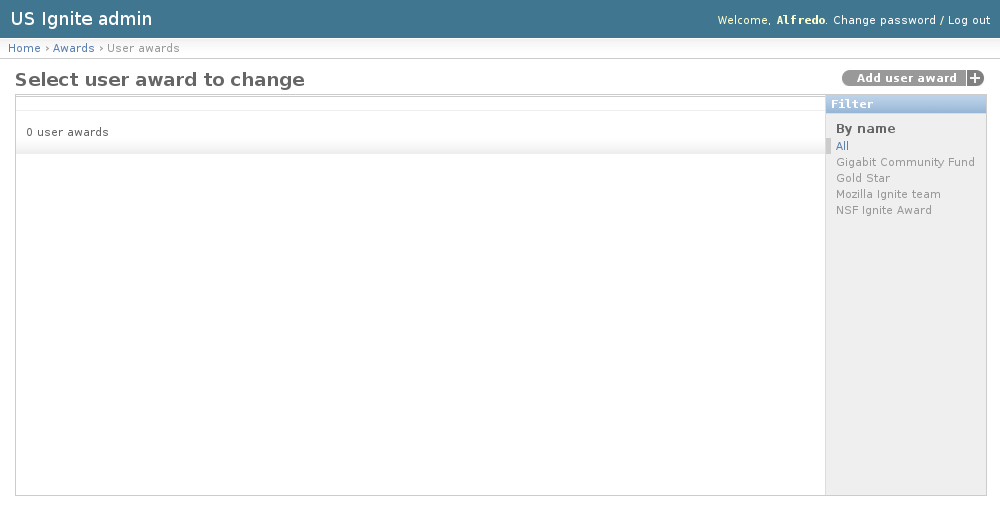
View existing User Awards
The existing User Awards can be listed in the /admin/awards/useraward/ URL. From this section the details of the User Awards can be inspected.
And the following actions can be performed:
- View the details of the User Awards.
- Filter the User Awards by: Award name.