Resources admin section
This section list the resources section and its usage in the site.
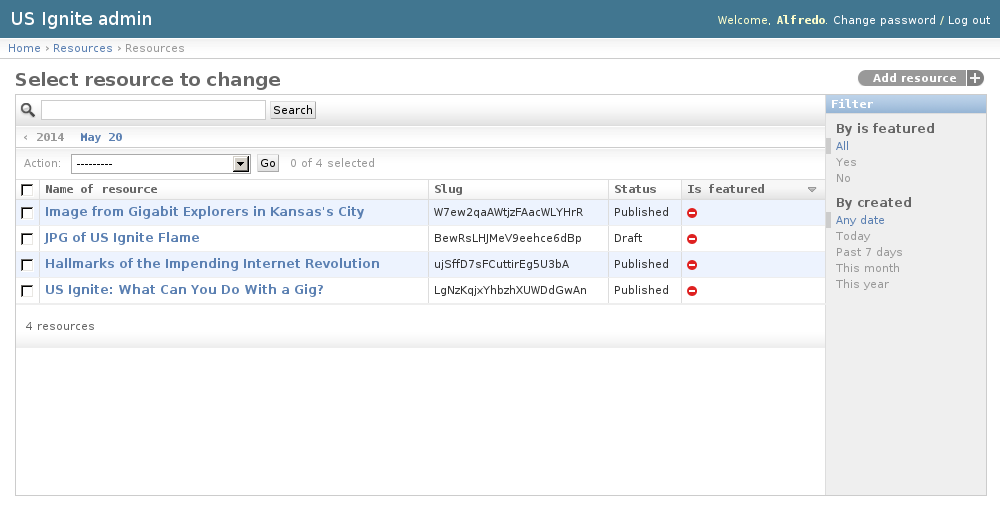
View existing Resources
The resources can be videos, links or downloadable assets fror the registered members of US Ignite.
The existing Resources are listed in the /admin/resources/resource/ URL. From this section the details of these Resources can be inspected.
And the following actions can be performed:
- View the details of the Resources.
- Filter the Resources by: is featured?, creation date.
- Search the Resources by their contents.
Adding Resources
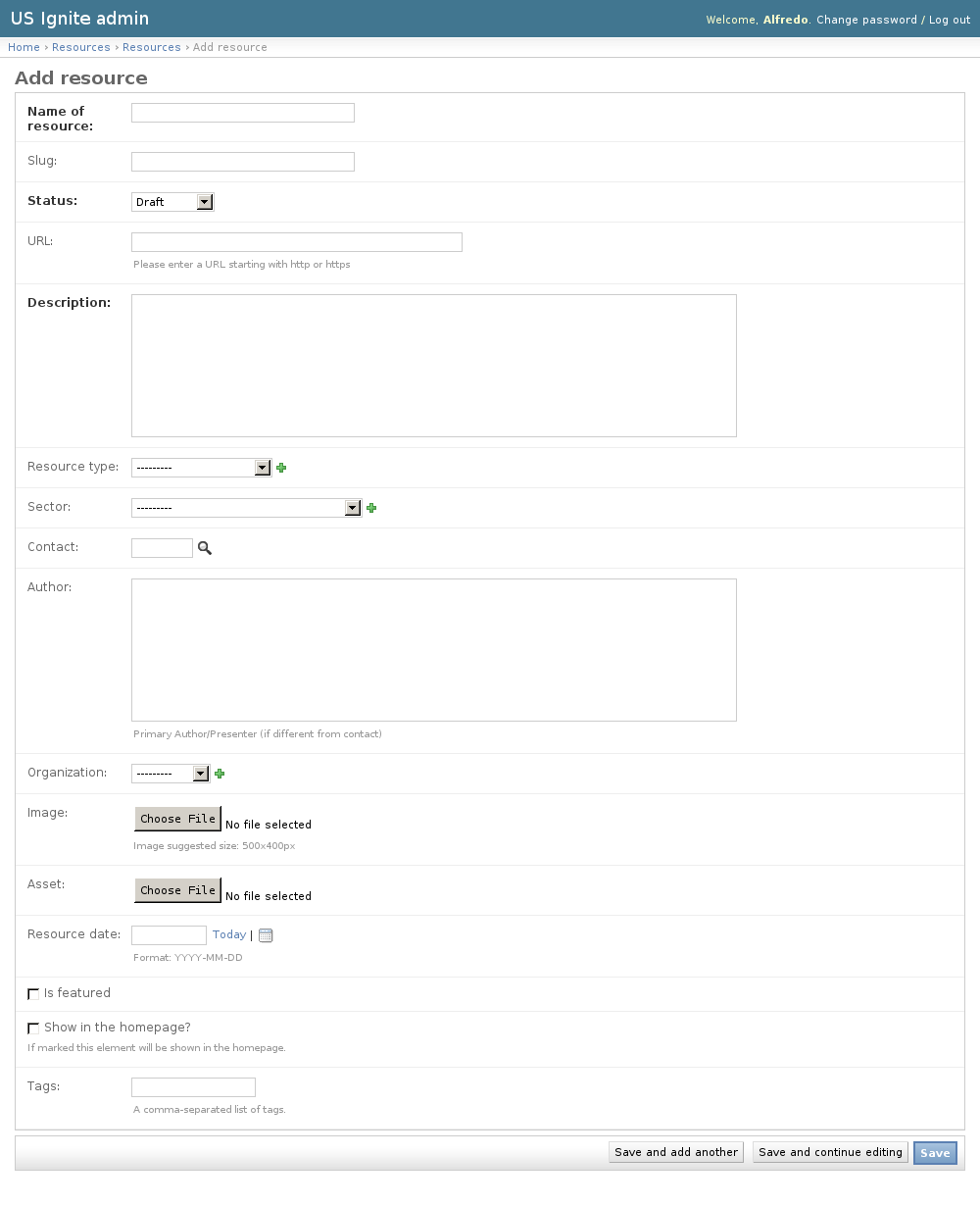
Adding Resources can be done from the front end of the application or the admins can do it via the /admin/resources/resource/add/ URL.
The following fields are available to create Resources:
- Name of resource: Required. Name of the resource.
- Slug: Optional. Slug used for the URL in the site. Must be unique.
- Status: Required. Publication status of the resourc ein the site.
- URL: Optional. Fully qualified URL if the resource is hosted outside the site.
- Description: Required. Description of the resource of the site.
- Resource type: Optional. Type of the resource.
- Sector: Optional. Domain for where this resource is more relevant.
- Contact: Optional. User to be contacted about this resource.
- Author: Optional. Primary Author/Presenter (if different from contact)
- Organization: Optional. Organization associated to this resource.
- Image: Optional. Image descriptive of this resource. Suggested size: 500x400px.
- Asset: Optional. Download associated to this resource.
- Resource date: Optional. Date of this resource.
- Is featured: Optional. Determines if this resource should be listed as featured.
- Show in the homepage?: Optional. If marked this element will be shown in the homepage.
- Tags: Optional. A comma-separated list of tags.
Note
Only the latest the featured items will be shown. Make sure elements that are not required to be featured are marked as non-featured.
Unpublishing / Removing Resources
In case Resources needs unpublishing it can be done from the detail admin view by changing the status of the Resources to draft or removed
Note
The Resources can be browsed in the /admin/resources/resource/ URL.
View existing Resource Types
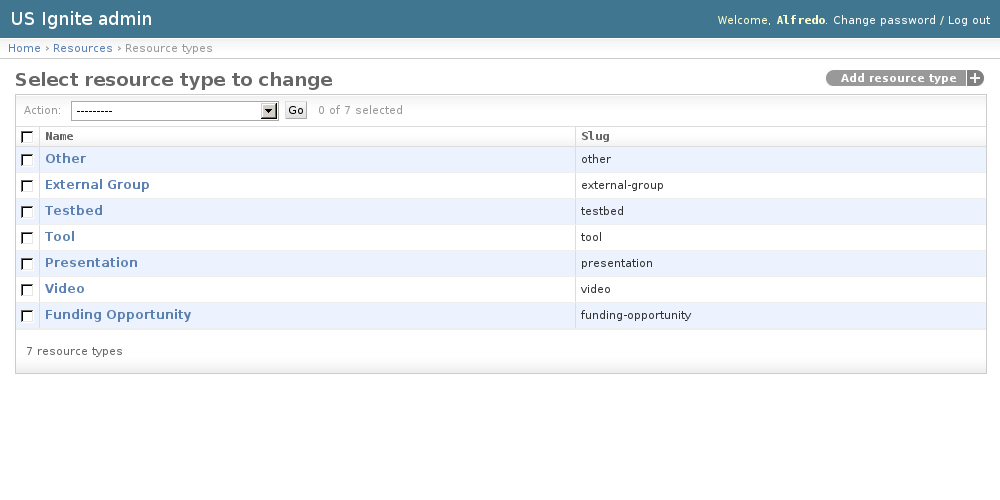
The existing Resource Types can be listed in the /admin/resources/resourcetype/ URL. From this section the details of these Resource Types can be inspected.
And the following actions can be performed:
- View the details of the Resource Types.
Adding Resource Types
Resource types are used to classify the existing resources.
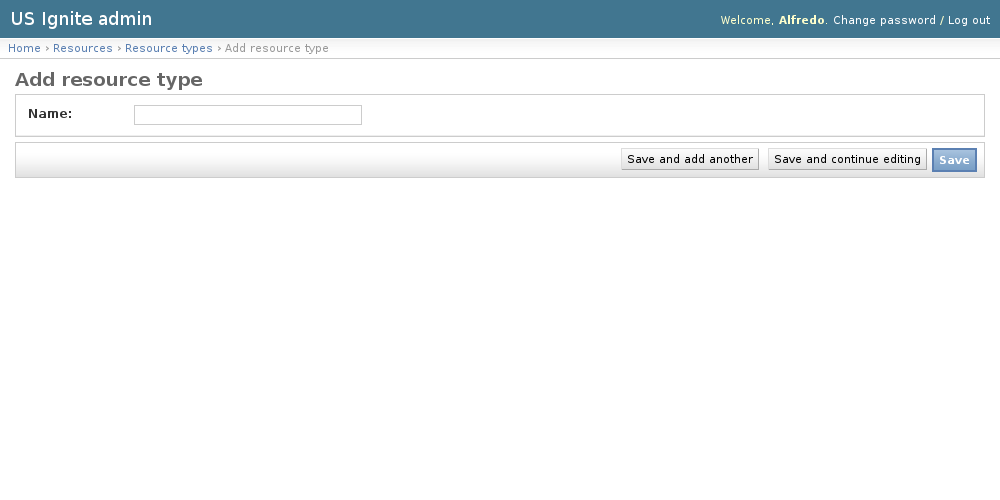
Adding Resource Types can be done from the /admin/resources/resourcetype/add/ URL.
The following fields are available to create Resource Types:
- Name: Required. Name used in the resource.
Removing Resource Types
In case Resource Types need removal it can be done by clicking the delete button in the detail page of the resource type.
Note
The Resource Types can be browsed in the /admin/resources/resourcetype/ URL.
Note
The removal of a resource type is permanent and will remove the association from any existing resource.
View existing Sectors
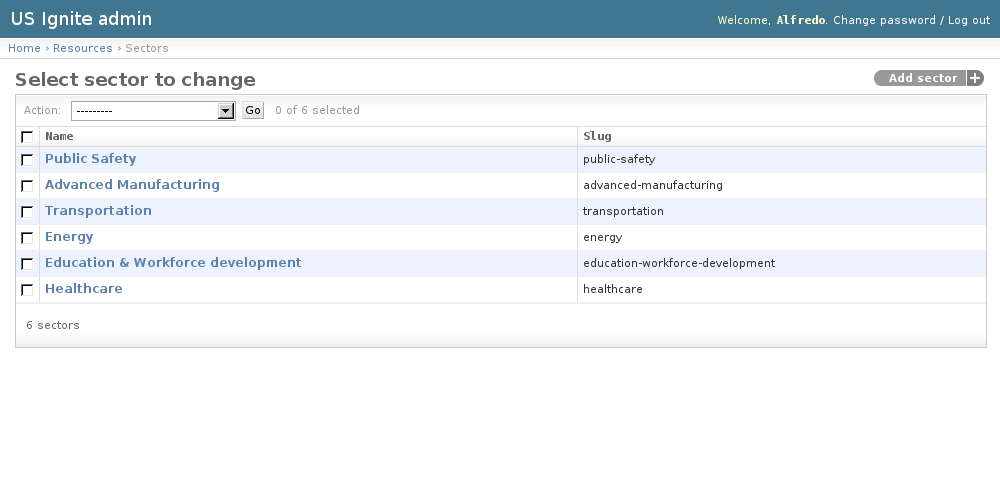
The sectors describe the domains where the resources could be more useful to.
The existing Sectors can be listed in the /admin/resources/sector/ URL. From this section the details of these Sectors can be inspected.
And the following actions can be performed:
- View the details of the Sectors.
Adding Sectors
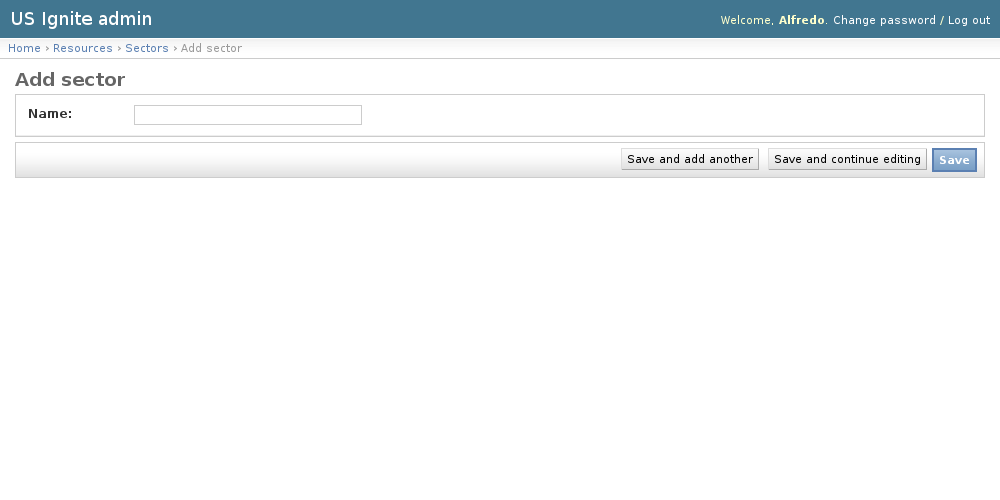
Adding Sectors can be done from the /admin/resources/sector/add/ URL.
The following fields are available to create Sectors:
- Name: Required. Name of the sector.
Removing Sectors
In case Sectors need removal it can be done by clicking the delete button in the detail page of the resource type.
Note
The Sectors can be browsed in the /admin/resources/sector/ URL.
Note
The removal of a Sector is permanent and will remove the association from any existing resource.