Sections admin section
This section list the sections section and its usage in the site.
View existing Section Pages
The section pages are dynamic pages that appear in the “about” or “get involved” sections.
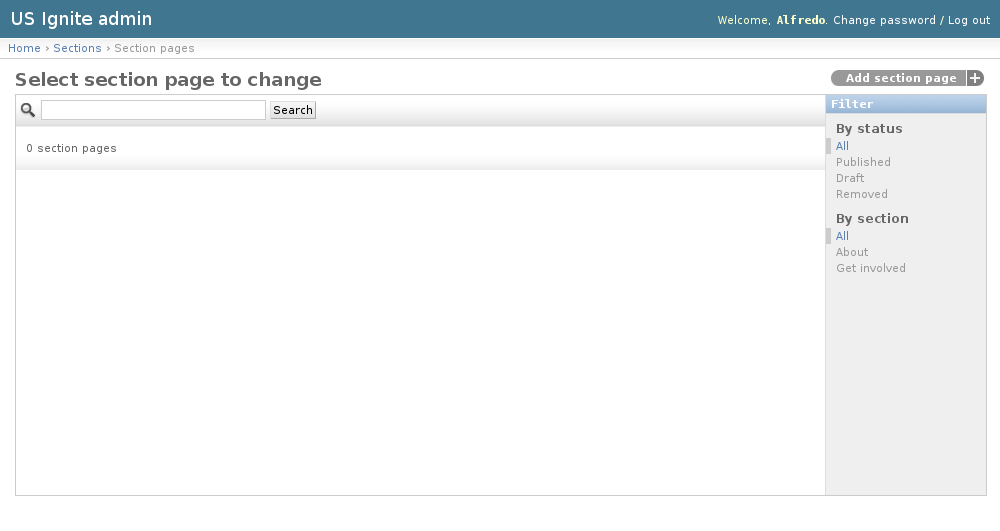
The existing Section Pages can be listed in the /admin/sections/sectionpage/ URL. From this section the details of these Section Pages can be inspected.
And the following actions can be performed:
- View the details of the Section Pages.
- Filter the Section Pages by: status or section.
- Search the Section Pages by their contents.
Adding Section Pages
The section pages are dynamic pages that appear in the “about” or “get involved” sections.
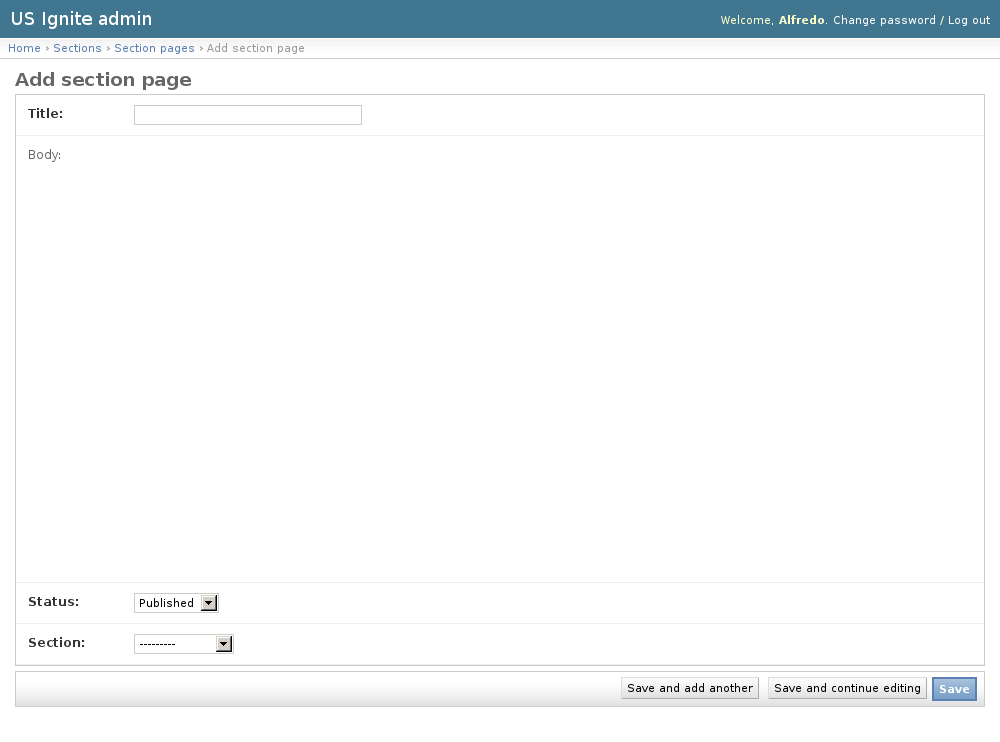
Adding Section Pages can be done from the /admin/sections/sectionpage/add/ URL.
The following fields are available to create Section Pages:
- Title: Required. Name of the page.
- Body: Optional. HTML content of the page.
- Status: Required. Publication status of the page.
- Section: Required. Section where this page will appear.
Note
An what you see is what you get editor has been added to add content to the pages.
Unpublishing / Removing Section Pages
In case Section Pages needs unpublishing it can be done from the detail admin view by changing the status of the Section Pages to draft or removed
Note
The Section Pages can be browsed in the /admin/sections/sectionpage/ URL.
View existing Sponsors
Sponsors are the organizations listed in the footer.
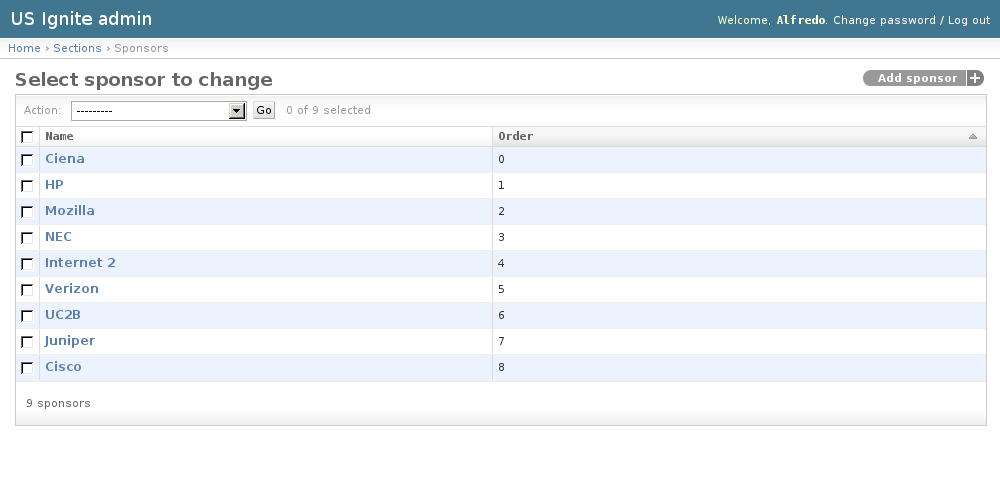
The existing Sponsors can be listed in the /admin/sections/sponsor/ URL. From this section the details of these Sponsors can be inspected.
And the following actions can be performed:
- View the details of the Sponsors.
Adding Sponsors
Sponsors are the organizations listed in the footer.
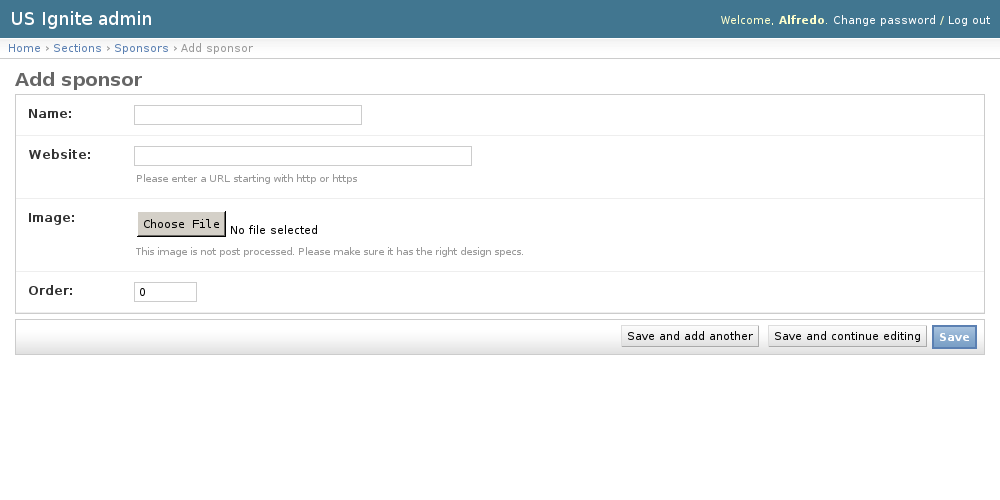
Adding Sponsors can be done from the /admin/sections/sponsor/add/ URL.
The following fields are available to create Sponsors:
- Name: Required. Name of the organization.
- Website: Required. URL of the organization.
- Image: Required. Image to be used in the footer to represent the organization.
- Order: Required. Order for the organization to appear.
Removing Sponsors
In case Sponsors needs to be removed clicking on the delete button of the detail page will inmediately remove it from the footer.
Note
The Sponsors can be browsed in the /admin/sections/sponsor/ URL.